

Onboarding — Health App Prototype in Figma


Project Introduction
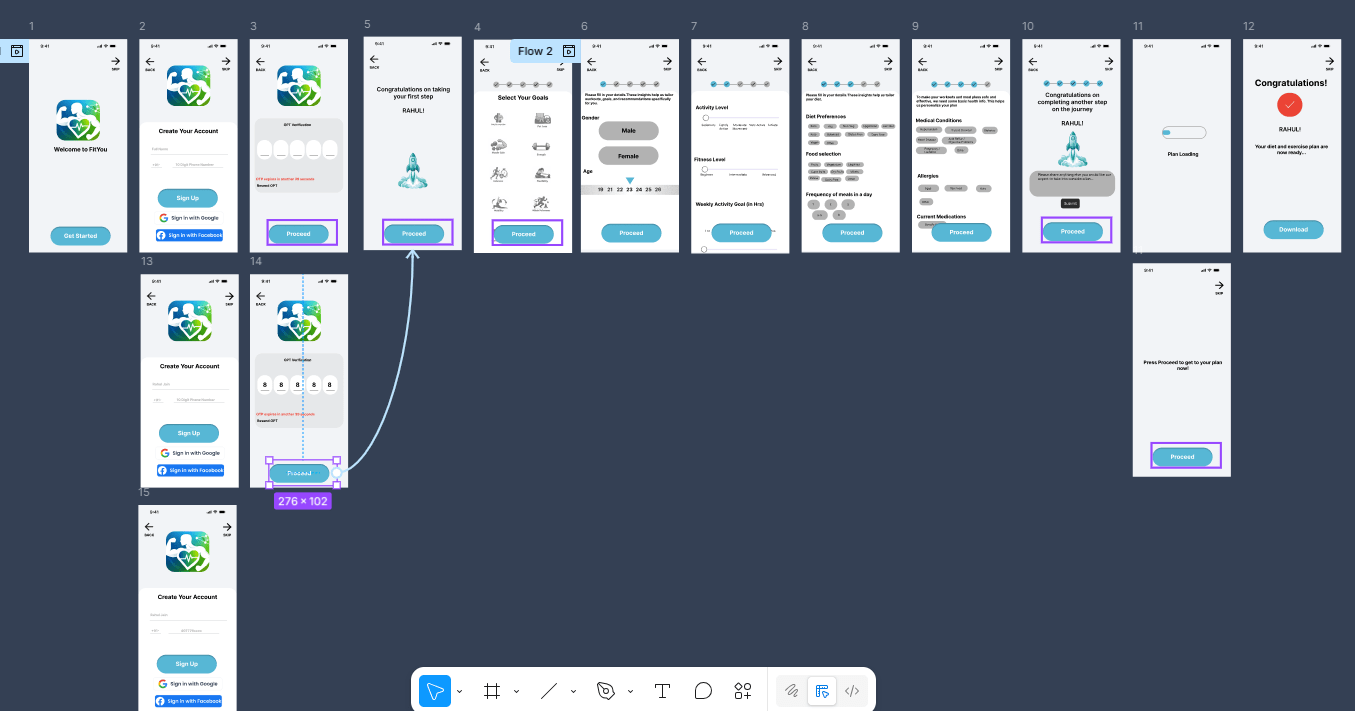
This project demonstrates the design and prototyping of a Health Fitness mobile application created using Figma to showcase practical interface design and product thinking skills essential for modern Product Managers. The prototype focuses on building a structured onboarding experience that collects detailed user information while maintaining usability, flexibility, and engagement. It is intended to simulate a real product scenario where user flows can be tested, evaluated, and refined through usability testing.
Problem Statement
Many users find lengthy onboarding processes frustrating and tedious, especially when required to input large amounts of personal data. This often leads to drop-offs, incomplete registrations, or inaccurate data entry. Therefore, there is a need for an onboarding experience that can efficiently collect detailed information while still feeling smooth, flexible, and user-friendly. The challenge is to design a system that encourages users to complete multiple inputs without overwhelming them.
Objective
The objective of this project is to design a structured onboarding prototype that enables users to enter more than 20 data points in a guided and intuitive manner. The prototype aims to demonstrate how thoughtful interaction design, navigation controls such as skip and back options, and progressive information collection can improve usability, reduce friction, and increase completion rates. Additionally, the prototype serves as a usability testing model for evaluating how users interact with multi-step onboarding flows.
Target Users
The target users for this prototype are potential users of a health and fitness application who want personalized workout and nutrition plans. This includes individuals who want tailored fitness recommendations, are willing to provide personal health data for better results, prefer guided step-by-step onboarding experiences, and value flexibility when entering information.
Screen Documentation
Screen 1 — Landing / Welcome
Purpose: Introduce the app and allow users to begin onboarding or skip.
- Skip button
- Get Started button
- App logo/illustration (if present)
- Heading text (if present)
- Background: White
Screen 2 — Create Account
Purpose: Collect basic user details required to create an account.
- Back button
- Skip button
- App illustration/logo
- Heading: Create Your Account
- Full Name input
- Phone Number input (+91 prefix + number field)
- Sign Up CTA
- Sign in with Google option
- Sign in with Facebook option
Screen 3 — OTP Verification
Purpose: Verify user identity securely before continuing.
- Back button
- App logo
- Heading: OTP Verification
- 5-digit OTP input boxes
- Timer text
- Resend OTP option
- Proceed CTA (only working action)
- Not skippable
Screen 4 — Motivation
Purpose: Encourage users and build excitement to continue onboarding.
- Back button
- Congratulatory message
- Dynamic name text
- Rocket illustration
- Proceed CTA
Screen 5 — Select Goals
Purpose: Understand user fitness goals to personalize recommendations.
- Back button
- Skip button
- Heading: Select Your Goals
Selectable options:
Body Recomposition, Fat Loss, Muscle Gain, Strength, Endurance, Flexibility, Mobility, Athletic Performance, General Health, additional scroll options
- Proceed CTA
Screen 6 — Age & Gender
Purpose: Collect demographic data to personalize plans.
- Back button
- Skip button
- Progress tracker
- Age selector/input
- Gender selection options
- Proceed CTA
Screen 7 — Activity & Fitness Details (Scrollable)
Purpose: Gather activity level and body metrics for accurate fitness planning.
- Back button
- Skip button
- Progress tracker
Sections:
- Activity Level slider
- Fitness Level slider
- Weekly Activity Goal slider
- Exercise Type selectable chips
- Exercise Time selectable chips
- Height input + unit toggle
- Weight input + unit toggle
- Proceed CTA
Screen 8 — Diet Preferences
Purpose: Understand dietary habits and restrictions for meal planning.
- Back button
- Skip button
- Progress tracker
- Instruction text
Sections:
- Diet Preferences selectable buttons
- Food Selection selectable buttons
- Meals per day options
- Proceed CTA
Screen 9 — Medical Information
Purpose: Ensure safety and personalization by collecting health-related details.
- Back button
- Skip button
- Progress tracker
- Instruction text
Sections:
- Medical Conditions selectable chips
- Allergies selectable chips
- Current Medications text field
- Proceed CTA
Screen 10 — Additional Info
Purpose: Allow users to provide extra information for deeper personalization.
- Back button
- Skip button
- Progress tracker
- Congratulatory message
- Dynamic name text
- Rocket illustration
- Text box for extra info
- Submit button
- Proceed CTA
Screen 11 — Plan Generating
Purpose: Inform users that their personalized plan is being generated.
- Progress bar only(takes about 5 seconds to load the plan)
Screen 12 — Plan Generated Confirmation
Purpose: Notify users that their plan has been successfully created.
- Confirmation message
- Proceed CTA
- Skip option
Screen 13 — Final Completion
Purpose: Confirm onboarding completion and allow next action.
- Completion message
- Checkmark completion indicator
- Download option
- Skip option
Conclusion
This prototype demonstrates how structured onboarding can be designed to balance detailed data collection with usability and user control. By incorporating navigation flexibility, progressive input steps, and clear visual feedback, the design ensures that users can comfortably complete a multi-step onboarding process. The project highlights practical Figma prototyping skills, user flow planning, and UX decision-making relevant to real-world product development and usability testing scenarios.
Screen Documentation
Screen 1 — Landing / Welcome
Purpose: Introduce the app and allow users to begin onboarding or skip.
- Skip button
- Get Started button
- App logo/illustration (if present)
- Heading text (if present)
- Background: White
Screen 2 — Create Account
Purpose: Collect basic user details required to create an account.
- Back button
- Skip button
- App illustration/logo
- Heading: Create Your Account
- Full Name input
- Phone Number input (+91 prefix + number field)
- Sign Up CTA
- Sign in with Google option
- Sign in with Facebook option
Screen 3 — OTP Verification
Purpose: Verify user identity securely before continuing.
- Back button
- App logo
- Heading: OTP Verification
- 5-digit OTP input boxes
- Timer text
- Resend OTP option
- Proceed CTA (only working action)
- Not skippable
Screen 4 — Motivation
Purpose: Encourage users and build excitement to continue onboarding.
- Back button
- Congratulatory message
- Dynamic name text
- Rocket illustration
- Proceed CTA
Screen 5 — Select Goals
Purpose: Understand user fitness goals to personalize recommendations.
- Back button
- Skip button
- Heading: Select Your Goals
Selectable options:
Body Recomposition, Fat Loss, Muscle Gain, Strength, Endurance, Flexibility, Mobility, Athletic Performance, General Health, additional scroll options
- Proceed CTA
Screen 6 — Age & Gender
Purpose: Collect demographic data to personalize plans.
- Back button
- Skip button
- Progress tracker
- Age selector/input
- Gender selection options
- Proceed CTA
Screen 7 — Activity & Fitness Details (Scrollable)
Purpose: Gather activity level and body metrics for accurate fitness planning.
- Back button
- Skip button
- Progress tracker
Sections:
- Activity Level slider
- Fitness Level slider
- Weekly Activity Goal slider
- Exercise Type selectable chips
- Exercise Time selectable chips
- Height input + unit toggle
- Weight input + unit toggle
- Proceed CTA
Screen 8 — Diet Preferences
Purpose: Understand dietary habits and restrictions for meal planning.
- Back button
- Skip button
- Progress tracker
- Instruction text
Sections:
- Diet Preferences selectable buttons
- Food Selection selectable buttons
- Meals per day options
- Proceed CTA
Screen 9 — Medical Information
Purpose: Ensure safety and personalization by collecting health-related details.
- Back button
- Skip button
- Progress tracker
- Instruction text
Sections:
- Medical Conditions selectable chips
- Allergies selectable chips
- Current Medications text field
- Proceed CTA
Screen 10 — Additional Info
Purpose: Allow users to provide extra information for deeper personalization.
- Back button
- Skip button
- Progress tracker
- Congratulatory message
- Dynamic name text
- Rocket illustration
- Text box for extra info
- Submit button
- Proceed CTA
Screen 11 — Plan Generating
Purpose: Inform users that their personalized plan is being generated.
- Progress bar only(takes about 5 seconds to load the plan)
Screen 12 — Plan Generated Confirmation
Purpose: Notify users that their plan has been successfully created.
- Confirmation message
- Proceed CTA
- Skip option
Screen 13 — Final Completion
Purpose: Confirm onboarding completion and allow next action.
- Completion message
- Checkmark completion indicator
- Download option
- Skip option
Conclusion
This prototype demonstrates how structured onboarding can be designed to balance detailed data collection with usability and user control. By incorporating navigation flexibility, progressive input steps, and clear visual feedback, the design ensures that users can comfortably complete a multi-step onboarding process. The project highlights practical Figma prototyping skills, user flow planning, and UX decision-making relevant to real-world product development and usability testing scenarios.
Screen Documentation
Screen 1 — Landing / Welcome
Purpose: Introduce the app and allow users to begin onboarding or skip.
- Skip button
- Get Started button
- App logo/illustration (if present)
- Heading text (if present)
- Background: White
Screen 2 — Create Account
Purpose: Collect basic user details required to create an account.
- Back button
- Skip button
- App illustration/logo
- Heading: Create Your Account
- Full Name input
- Phone Number input (+91 prefix + number field)
- Sign Up CTA
- Sign in with Google option
- Sign in with Facebook option
Screen 3 — OTP Verification
Purpose: Verify user identity securely before continuing.
- Back button
- App logo
- Heading: OTP Verification
- 5-digit OTP input boxes
- Timer text
- Resend OTP option
- Proceed CTA (only working action)
- Not skippable
Screen 4 — Motivation
Purpose: Encourage users and build excitement to continue onboarding.
- Back button
- Congratulatory message
- Dynamic name text
- Rocket illustration
- Proceed CTA
Screen 5 — Select Goals
Purpose: Understand user fitness goals to personalize recommendations.
- Back button
- Skip button
- Heading: Select Your Goals
Selectable options:
Body Recomposition, Fat Loss, Muscle Gain, Strength, Endurance, Flexibility, Mobility, Athletic Performance, General Health, additional scroll options
- Proceed CTA
Screen 6 — Age & Gender
Purpose: Collect demographic data to personalize plans.
- Back button
- Skip button
- Progress tracker
- Age selector/input
- Gender selection options
- Proceed CTA
Screen 7 — Activity & Fitness Details (Scrollable)
Purpose: Gather activity level and body metrics for accurate fitness planning.
- Back button
- Skip button
- Progress tracker
Sections:
- Activity Level slider
- Fitness Level slider
- Weekly Activity Goal slider
- Exercise Type selectable chips
- Exercise Time selectable chips
- Height input + unit toggle
- Weight input + unit toggle
- Proceed CTA
Screen 8 — Diet Preferences
Purpose: Understand dietary habits and restrictions for meal planning.
- Back button
- Skip button
- Progress tracker
- Instruction text
Sections:
- Diet Preferences selectable buttons
- Food Selection selectable buttons
- Meals per day options
- Proceed CTA
Screen 9 — Medical Information
Purpose: Ensure safety and personalization by collecting health-related details.
- Back button
- Skip button
- Progress tracker
- Instruction text
Sections:
- Medical Conditions selectable chips
- Allergies selectable chips
- Current Medications text field
- Proceed CTA
Screen 10 — Additional Info
Purpose: Allow users to provide extra information for deeper personalization.
- Back button
- Skip button
- Progress tracker
- Congratulatory message
- Dynamic name text
- Rocket illustration
- Text box for extra info
- Submit button
- Proceed CTA
Screen 11 — Plan Generating
Purpose: Inform users that their personalized plan is being generated.
- Progress bar only(takes about 5 seconds to load the plan)
Screen 12 — Plan Generated Confirmation
Purpose: Notify users that their plan has been successfully created.
- Confirmation message
- Proceed CTA
- Skip option
Screen 13 — Final Completion
Purpose: Confirm onboarding completion and allow next action.
- Completion message
- Checkmark completion indicator
- Download option
- Skip option
Conclusion
This prototype demonstrates how structured onboarding can be designed to balance detailed data collection with usability and user control. By incorporating navigation flexibility, progressive input steps, and clear visual feedback, the design ensures that users can comfortably complete a multi-step onboarding process. The project highlights practical Figma prototyping skills, user flow planning, and UX decision-making relevant to real-world product development and usability testing scenarios.
19 Feb 2026
Keywords