7 Free LinkedIn Banner Maker Tools for Professional Profiles

Riten Debnath
08 Mar, 2026
Your LinkedIn banner is the digital equivalent of wearing a stained t-shirt to a board meeting. You have a pristine resume and a glowing headshot, but there is that default LinkedIn gray-blob background staring back at recruiters like a blank wall. It screams, "I have no personality, and I haven't updated this profile since 2014." A custom banner is your billboard. It is the first thing people see. It is your chance to say, "I am a real person, I am good at what I do, and I actually care about how I present myself." You do not need a degree in graphic design or a bloated subscription to Photoshop to fix it. Here are 7 tools that will help you stop looking like a ghost and start looking like a professional.
I’m Riten, founder of Fueler, a skills-first portfolio platform that connects talented individuals with companies through assignments, portfolios, and projects, not just resumes/CVs. Think Dribbble/Behance for work samples + AngelList for hiring infrastructure.
1. Canva
Canva is the absolute king of "I need this done in three minutes but want to look like a pro." It is the tool you use when you want to avoid design-induced rage. If you can click a mouse and type a few words, you have all the technical skills required to build a banner that makes your career look like it is heading straight to the moon.
- Pre-Sized Perfection: They have dedicated LinkedIn banner templates that fit perfectly within the official dimensions, so you do not have to play the guessing game of "will it get cropped?" with your important profile details. This saves you from the frustration of uploading, checking, deleting, and re-uploading a dozen times just to get your name and title properly centered without it being obscured by your profile photo.
- Massive Template Library: With thousands of designs that range from "minimalist corporate" to "creative agency cool," you are never going to be stuck with that generic blue rectangle that everyone else on the platform is using. The sheer variety ensures that no matter what your industry is, you will find a starting point that feels like it was custom-made for your unique professional brand and personality.
- Drag-and-Drop Editor: The interface is so simple that anyone could probably design a better banner than most Fortune 500 companies have, which makes your entire design process feel like an absolute breeze rather than a stressful chore. You can grab icons, images, and text boxes, moving them around with total freedom until everything looks perfectly aligned, visually balanced, and ready to impress any recruiter who lands on your page.
- Asset Goldmine: With millions of photos, icons, and professional fonts available at your fingertips, you can build something that feels one hundred percent unique without paying a single dime for expensive assets. Having such a massive library of high-quality resources means you never have to worry about looking like you used the same boring, overused stock image as every other applicant in your job search queue.
- Real-Time Collaboration: If you are working with a colleague, a career coach, or a mentor to get your personal brand just right, you can share the link and have them drop in feedback or make edits in real-time, just like you would with a simple Google Doc. This makes the review process incredibly smooth, ensuring that your final design is polished, accurate, and ready for public viewing.
Pricing: Canva offers a very robust Free plan that includes most of what you need. Their Pro plan is $12.99 per month or $119.99 per year if you want access to premium stock assets and advanced AI features.
Why it matters: Canva is the ultimate equalizer for anyone who isn't a professional designer but refuses to look like an amateur. Because it handles the technical dimension requirements automatically, you save hours of frustrating trial and error. It ensures your profile looks sharp, intentional, and high-quality across every device, which is absolutely vital for building a trustworthy, authoritative brand that keeps recruiters interested in your profile long enough to read your actual experience.
2. Adobe Express
Adobe is usually the scary, expensive giant of the design world, but Express is the friendly version that won’t ask you to sell a kidney to afford it. It is polished, smooth, and feels undeniably premium. It is designed for creators who want the high-end aesthetic of an Adobe product without the three-week-long, headache-inducing tutorial marathon that usually accompanies their professional-grade software.
- Adobe-Grade Fonts: Access to some of the cleanest, most professional fonts in the entire design industry is a massive cheat code for making a banner look like it came from a high-end agency. Choosing the right typography immediately elevates your banner from looking like a simple hobbyist project to something that commands respect, authority, and genuine interest from the moment a potential employer lands on your profile page.
- Quick Action Tools: You can remove backgrounds or instantly resize your images for different social media platforms with just one single click, saving you from the soul-crushing, tedious manual labor that other, less efficient tools force you into. This efficiency is a huge win when you are trying to keep your personal brand consistent across LinkedIn, Twitter, and your personal portfolio, all while managing a busy job search schedule.
- Syncs Everywhere: You can start your design on your laptop during your lunch break while at the office and then easily finish it on your phone while you are waiting for the bus; everything lives in the cloud and follows you. This level of flexibility ensures that inspiration can be acted upon immediately, so you are never tethered to one specific device when you need to make a quick update.
- Professional Templates: The templates provided here are significantly cleaner, more modern, and more "professional" than your average design tool, so you will always look like you are winning at your career. These designs are curated to match current industry aesthetics, helping you avoid looking outdated and ensuring that your profile reflects a candidate who is current, capable, and tech-savvy in a very competitive modern job market.
- Style-Forward Branding: You can easily save your specific brand fonts and custom colors as a reusable "brand kit," ensuring your banner perfectly matches your resume, your personal website, or your portfolio. This level of consistency is the hallmark of a professional who treats their career like a business, helping you build a recognizable and memorable identity that potential employers will associate with high-quality, reliable, and professional work.
Pricing: Adobe Express has a generous Free plan with access to over 100,000 templates and core editing features. The Premium plan is $9.99 per month, unlocking millions of stock assets and advanced generative AI credits.
Why it matters: Adobe Express bridges the gap between doing it yourself and hiring an expensive agency. It gives your LinkedIn profile a sophisticated, clean look that suggests you are a serious player in your industry, which is exactly the kind of impression that lands you top-tier opportunities. It is the secret weapon of the candidate who wants the quality of a professional designer but has a budget of exactly zero dollars.
3. Snappa
Snappa is for people who have a goldfish-like attention span and just need to get the job done right now. It is built for raw speed and simplicity. It is the ultimate tool for when you need a banner, you need it to look professional, and you need it yesterday. It does not bog you down with thousands of complex, confusing options; it just gives you exactly what you need to win.
- No Clutter Workflow: The user interface is exceptionally clean, fast, and lacks the distracting "features for the sake of features" that make other design tools feel bloated and overwhelming for beginners. You will never find yourself clicking through ten hidden sub-menus just to change the color of a simple box, as everything you could possibly need is laid out right in front of you.
- High-Res Stock Photos: The biggest issue with most free design tools is the stock photography, which usually looks like it was taken in the late nineties, but Snappa’s library is actually current and usable. It is full of clean, high-resolution imagery that does not scream "generic stock photo," which is a absolute lifesaver for building a professional and authentic-looking brand identity that people will actually trust.
- Dimensions are Preset: Just like Canva, every single template in the system is already set to the official LinkedIn banner dimensions, meaning you never have to worry about cropping errors or pixelated images that look terrible when uploaded. This takes all the guesswork out of the process, saving you from the sheer frustration of having to redo your design multiple times just to get the fit perfectly right.
- Background Removal: Snappa includes an easy-to-use background removal tool that is surprisingly effective at isolating your headshot so you can place yourself against a clean, custom background. This adds a touch of personalization that makes your profile look much more connected and human, helping you build rapport with recruiters even before they have had a chance to read through your professional experience.
- Visual Consistency: You can easily save your favorite layouts, fonts, and color schemes to use again later, making it incredibly simple to iterate on your banner if you want to switch things up for a new role. This consistency is vital for your long-term branding efforts, ensuring you look like a stable, organized professional whose online presence is always kept up to date.
Pricing: Snappa offers a Free Starter plan that gives you access to templates and over 5,000,000 photos and graphics, but it limits you to 3 downloads per month. The Pro plan costs $10 per month when billed annually, offering unlimited downloads, social media sharing, and custom font uploads.
Why it matters: If you spend all your precious time tinkering with a banner, you aren't spending your time updating your profile or sending messages to potential employers. Snappa respects your time, allowing you to maximize your impact with minimal effort, keeping you focused on the actual job hunt instead of getting distracted by complex design software that doesn't actually help you get hired.
4. Visme
Visme is essentially what happens when a slide deck creator grows up and learns how to be cool. It is built for data, structure, and professional presentation, which makes it perfect if you are in a field like finance, marketing, or project management where "looking organized" is basically your entire job description. It is the perfect choice for anyone wanting to signal high-level competence.
- Data-Driven Graphics: Need to show a small chart or a clean growth icon on your banner to prove you are a numbers person? Visme has excellent tools for creating clean, professional visualizations that can be integrated directly into your banner. It is a subtle but powerful way of showing your specific technical competence without needing to write "I am good at Excel" in your headline.
- Grid Alignment Tools: This is for the total perfectionists out there. Visme provides excellent alignment and snapping tools that ensure your text is perfectly centered and your images are perfectly spaced every single time. It removes that "thrown together" look and replaces it with a balanced, symmetrical aesthetic that feels very professional, intentional, and high-caliber, which is exactly the vibe you want for a career-focused profile.
- Icon and Vector Library: The icons here are not just flat, boring shapes; they are high-quality vector graphics that can be scaled up or down without ever losing quality. This means your banner will look crisp even on high-resolution screens, preventing that blurry, pixelated mess that often happens when you use low-quality images, ensuring your profile always looks as sharp as your actual professional skills.
- Professional Brand Color Integration: It is incredibly easy to set up your own color palette, which is huge for personal branding, as using consistent colors is the easiest way to make people associate a specific "vibe" with you. Visme makes this step feel completely seamless, which is why it is a go-to favorite for people who are serious about building a recognizable and professional personal brand.
- Text Layering Control: You have granular control over how your text sits on top of your background images, which ensures your message is always readable. This is vital for a LinkedIn banner where you have very little room to work with, helping you communicate your value proposition effectively without the text becoming lost in a busy or poorly composed background image.
Pricing: Visme has a Basic free plan with limited templates and 100MB of storage, but it includes Visme branding on your downloads. The paid plans start at $15 per month for the Standard plan (billed annually) for more storage and access to all assets, while the Business plan costs $29 per month (billed annually) for team collaboration and branding tools.
Why it matters: Visme is the tool for people who want to be taken seriously. It provides a level of structure and professional polish that is hard to find elsewhere, helping you build a brand that projects competence and attention to detail. It is the best way to visually prove that you are a highly organized professional who cares about how your work is presented to the world.
5. Pixlr
Pixlr is the scrappy, underdog photo editor that lives in your browser and is secretly more powerful than it has any right to be. It is not a "template generator" in the same way the others are, but if you are the type of person who likes to open the hood of a car and tweak the engine, this is your home for creative design.
- Layer-Based Editing: Unlike most simple banner tools, Pixlr actually uses a true layer system. This means you can have your background image, a filter layer, a text layer, and an icon layer all separate. It gives you the kind of absolute control that professional designers expect, allowing you to create something that looks like it was made in complex software without the massive learning curve.
- Extensive Filter Engine: If you have a headshot that is a little too dark or doesn't match your background, Pixlr’s filters can fix it. You can adjust exposure, temperature, and contrast, which makes your photo look like it was taken by a professional photographer even if it was just taken by your roommate in a hallway, ensuring you always look like a million bucks.
- Free Canvas Freedom: You are not locked into a template here. If you have a specific idea in your head, you can build it from scratch. This is great for people who have a very specific artistic vision and refuse to be constrained by someone else's layout, giving you the creative freedom to build something that is one hundred percent unique to your career.
- High-Quality Exporting: You can choose exactly how to save your file, which is useful for getting the perfect file size for LinkedIn. This ensures your banner looks crystal clear when uploaded, without violating file size limits, so you keep your channel looking professional and sharp while still adhering to the technical standards that the platform requires for all its users.
- No Software Bloat: It runs entirely in your browser. There is no downloading, no installation, and no massive software updates that take up your hard drive space. It is light, fast, and ready to go whenever you are, making it the perfect tool for when you need to make a quick update but don't want to deal with the hassle of desktop apps.
Pricing: Pixlr is free to use but ad-supported. They offer a Premium plan at $7.99 per month or $58.80 per year, which removes ads and gives you access to exclusive stickers, overlays, and advanced editing tools.
Why it matters: Pixlr is for the creator who wants a unique look. Since you are not using a pre-made template, the odds of someone else on LinkedIn having the exact same banner as you are basically zero. It helps you build a brand that is authentically yours, proving you have the creativity to stand out in a world where everyone else is using the same five cookie-cutter templates.
6. BeFunky
BeFunky is the design tool equivalent of a cup of coffee; it is fast, it is friendly, and it makes everything you touch look a little bit better. It is perfect if you want to make a quick, aesthetically pleasing banner without having to learn anything complex or getting bogged down by technical jargon. It is for people who want results, not a long-term project.
- Intuitive Design Interface: BeFunky is arguably the most beginner-friendly tool on this list. You can add text, change backgrounds, and throw on some graphics in literal seconds. It is almost impossible to make a design that looks "bad" because everything is pre-formatted to look cohesive, making it the ultimate tool for someone who just wants to get the job done and move on with their day.
- Artistic Filters: BeFunky’s roots are in photography, so it has some of the best one-click artistic filters in the game. You can turn a regular photo of yourself into something that looks like an oil painting or a sleek sketch, which can be a fun way to express your personal creativity in a way that feels professional yet distinct enough to catch a recruiter's eye.
- Extensive Font Library: They have a great selection of fonts that are all categorized by style, so you can easily find a typeface that matches the specific vibe you are going for. Whether you want to look corporate and clean or a bit more creative and quirky, they have the right font to ensure your message is clear, readable, and perfectly suited to your niche.
- Drag-and-Drop Graphics: They have a massive library of stickers and vector graphics that you can drag and drop onto your canvas. It is perfect for adding little visual details that give your banner a bit more "pop" without making it look overly cluttered or confusing, which is a common mistake that people make when trying to add extra flair to their professional profiles.
- Easy Project Management: You can save your projects to the cloud, meaning you can come back to your banner design whenever you are ready to make a change. This is incredibly helpful for maintaining a professional presence, as it allows you to easily update your banner as your career evolves without having to restart the entire design process from square one every time.
Pricing: BeFunky is free for basic editing, but they offer a Plus subscription for $22.99 per month or $129.99 per year that unlocks professional-grade features like background removal, advanced AI enhancement, and exclusive premium templates.
Why it matters: BeFunky is for the creators who want to keep things simple, fast, and fun. It removes all the stress of design, allowing you to focus on expressing your personality and building your brand. It is a great tool if you want to get your banner done as quickly as possible and get back to doing what you love, which is focusing on your work.
7. Desygner
Desygner is the underdog that packs a serious punch. It is incredibly powerful for people who need to create designs across multiple platforms and want a tool that can handle everything without missing a beat. It is built to be a one-stop shop for all your social media needs, and its LinkedIn banner maker is surprisingly capable of creating high-quality, professional-looking designs.
- Multi-Platform Syncing: The biggest advantage here is how easily you can create one design and then resize it for other platforms like Twitter or Facebook. If you are building a cohesive personal brand, this feature is a lifesaver, as it ensures your visual identity is identical no matter where a potential client or employer finds you online, making you look highly organized.
- Importing Capabilities: You can import your own images from social media or your computer with ease, allowing you to incorporate your existing professional assets into your new banner design. This makes it very simple to keep your branding aligned with the photos you already use on other platforms, helping you maintain a professional, consistent look across the entire web without any extra effort.
- Extensive Template Variety: They offer a massive range of templates that are specifically designed for professional profiles, giving you plenty of options that look clean, modern, and serious. These designs are perfect for anyone who wants to avoid the "fluff" and focus on creating a banner that effectively communicates their professional value proposition to anyone who lands on their page.
- Text Editing Precision: Desygner offers very precise control over text, including kerning, line spacing, and alignment, which is perfect for anyone who wants their banner to have that specific "designed" look. This level of detail makes a huge difference in the final quality of your work, ensuring that your text is perfectly legible and visually balanced against your background image or graphic.
- Easy Sharing and Exporting: Once your banner is finished, it is incredibly easy to download it in the right format for LinkedIn. The process is smooth and intuitive, so you can go from having a boring, default profile to a sleek, professionally branded one in just a few short minutes, which is exactly the kind of efficiency every job seeker needs.
Pricing: Desygner has a very helpful Free plan that provides access to thousands of templates and images. The Pro+ plan is $9.95 per month, offering access to advanced tools, branding kits, and millions of premium images to take your designs even further.
Why it matters: Desygner is the perfect tool for the busy professional who wants to keep their online presence consistent. It makes managing your personal brand feel like a simple, manageable task rather than a huge project, helping you project an image of a candidate who is organized, tech-savvy, and clearly serious about their professional career growth.
Fueler: The Missing Piece of Your Professional Brand
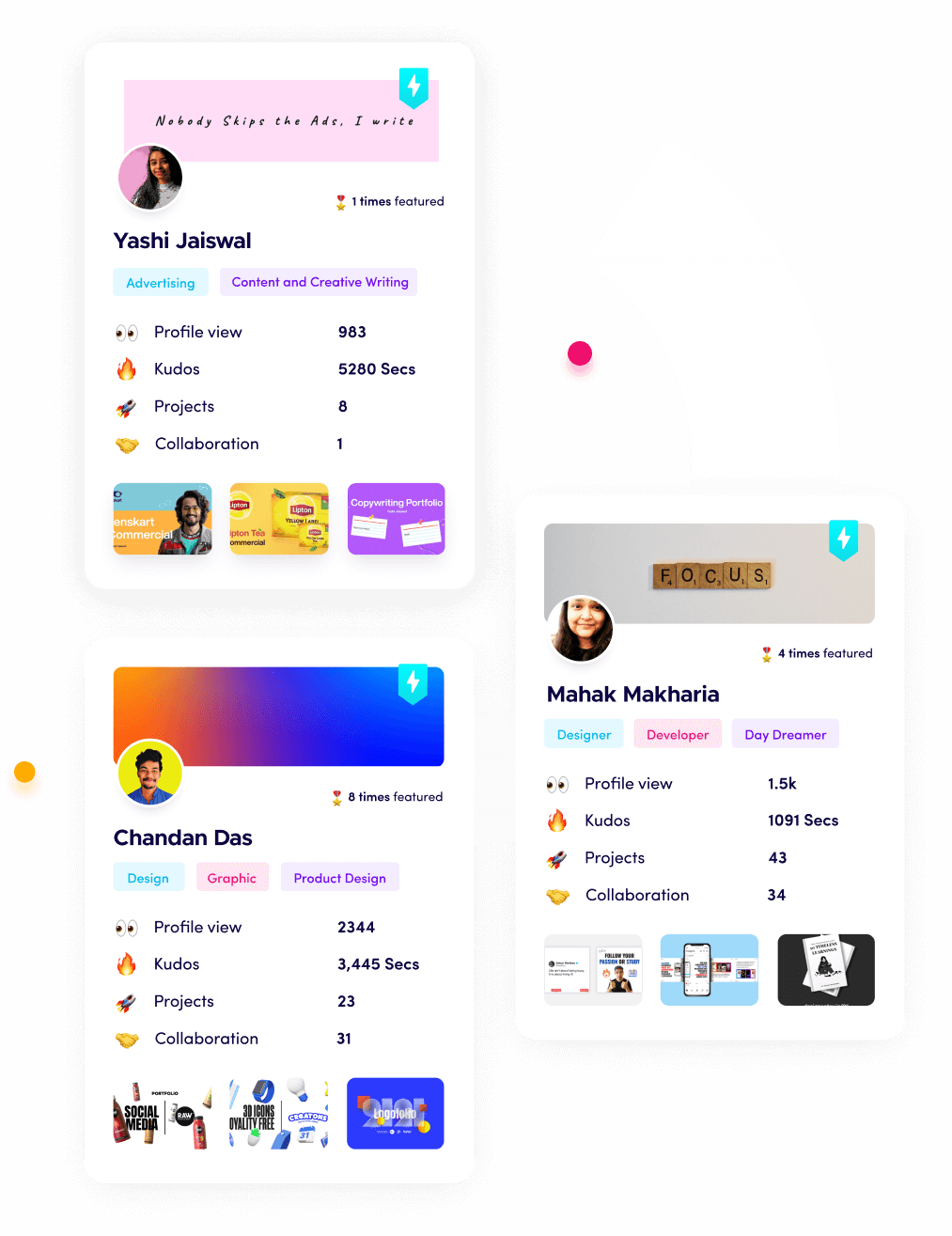
You have designed a killer banner, and your profile is looking sharper than ever. But remember, a banner is only the invitation. To turn profile visitors into collaborators, employers, or clients, you need to showcase the actual work behind your profile. That is where Fueler comes in. We provide a dedicated space for you to house your work samples, assignments, and projects, moving far beyond the limitations of a standard resume. If you are building a career as a creator, developer, or designer, your portfolio is your most powerful asset. Use Fueler to organize your best work and link it directly to your LinkedIn profile, showing the world exactly what you are capable of achieving.
Final Thoughts
Building a professional LinkedIn banner doesn't have to be a nightmare, and it definitely shouldn't cost you a fortune. By using the free tools we have covered, you can easily create a professional-looking banner that captures the heart of your personal brand and welcomes your viewers in style. Remember, the best banner is clean, clear, and perfectly reflects who you are as a professional. So, pick a tool that speaks to you, experiment with your design, and don't be afraid to show off a little personality. Your next big career opportunity is waiting to see what you have got.
Frequently Asked Questions
1. Is it worth paying for a LinkedIn banner maker?
Usually, no. For most individuals, the free tiers offered by tools like Canva or Adobe Express are more than enough to create a high-quality, professional banner. Only pay if you need specific premium assets or advanced team-collaboration features.
2. What is the standard size for a LinkedIn banner?
The recommended size is 1584 x 396 pixels. Using tools like Canva or Snappa makes this easy because they provide templates that automatically fit these dimensions, saving you the headache of manually resizing images.
3. What should I include on my LinkedIn banner?
You should include a clear representation of your professional identity. This could be your job title, a tagline explaining what you do, your contact information, or even a subtle visual of your work environment. Keep it clean and readable.
4. Can I use design tools for my banner design?
Yes, many of the tools listed above, such as Adobe Express and Canva, now include advanced features that can help generate images or remove backgrounds. These are great for speeding up your workflow and achieving professional results quickly.
5. How often should I update my LinkedIn banner?
You don't need to change it constantly, but updating it when you change roles, finish a major project, or simply want to refresh your brand's look is a smart move. It shows you are active and engaged with your professional presence.
What is Fueler Portfolio?
Fueler is a career portfolio platform that helps companies find the best talent for their organization based on their proof of work. You can create your portfolio on Fueler. Thousands of freelancers around the world use Fueler to create their professional-looking portfolios and become financially independent. Discover inspiration for your portfolio
Sign up for free on Fueler or get in touch to learn more.
What should you do next?
You've read the article. Now turn your skills into proof of work and unlock more opportunities.
Build your proof of work portfolio
Create a clean portfolio with projects, assignments, resumes, and AI stack details that companies actually want to see.
Create your Fueler portfolio →Apply through assignments, not resumes
Stand out by solving real tasks from companies hiring on Fueler.
Explore assignments →Get discovered by companies
Make your work public and let recruiters discover your skills through actual projects instead of keywords.
Get discovered →